 AI
How to Use Proton Mail in 2026: Step-by-Step Setup Guide
Affiliate disclosure: this article contains affiliate links. If you buy through them we may earn a commission at no extra cost to you. It does not influence our editorial assessment.
Proton Mail is an encrypted email service from Proton, the Swiss privacy company that also makes Proton VPN, Proton Drive, Proton Calendar and Proton Pass. If you are moving away from a mainstream inbox, the good news is that setup is quick and most of the security happens automatically in the background. This guide walks through the steps in order: creating an account, securing it, moving your old mail across, sending protected messages, and connecting a custom domain or a desktop email client. It is based on Proton's public documentation and published feature lists as of 2026.
Step 1: Create your Proton Mail account
Go to the Proton Mail website and choose a plan. There is a free plan, so you can start without a payment method and upgrade later if you need more storage, more addresses or business features.
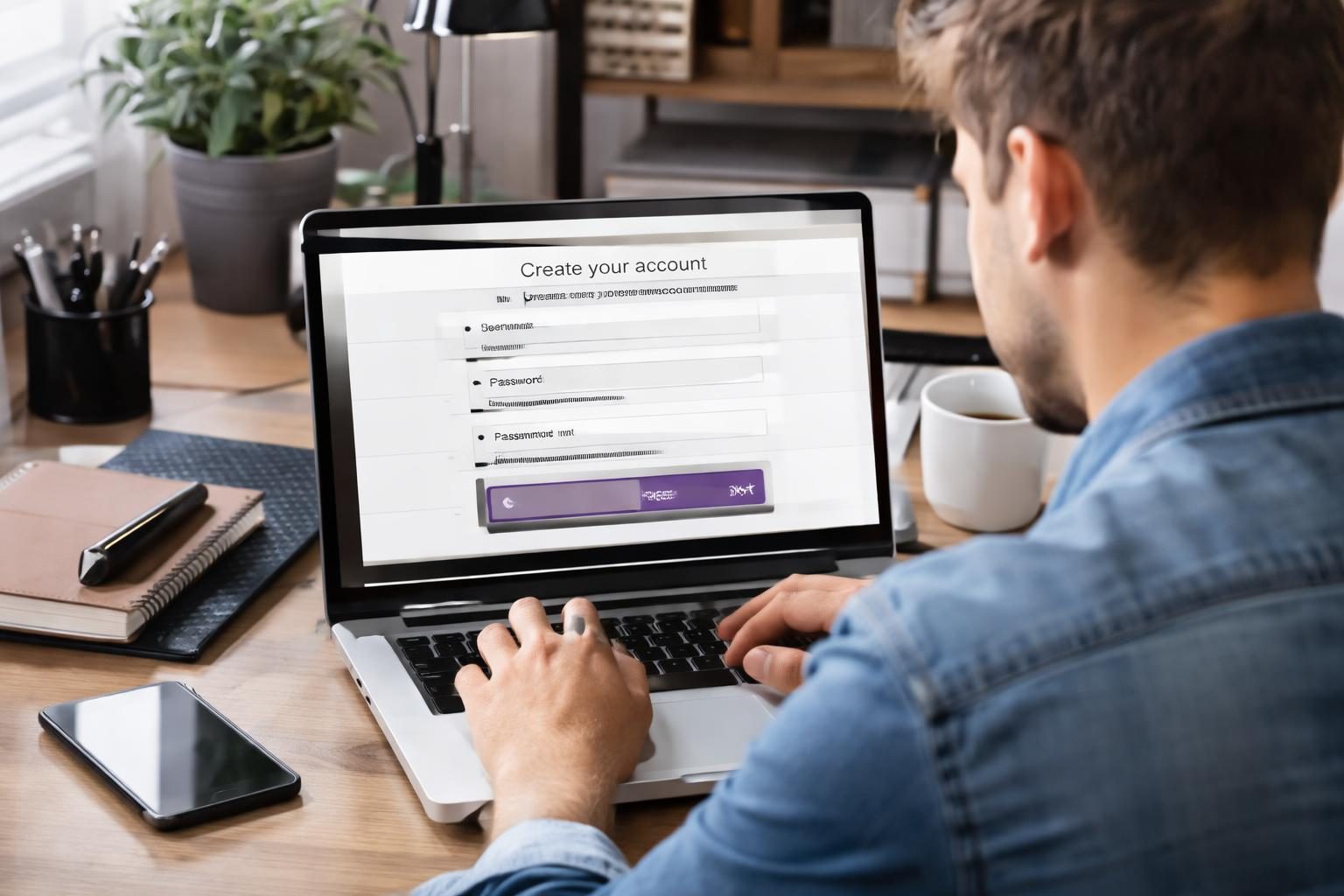
During sign-up you pick a username and a domain for your address, set a password, and optionally add a recovery email address or phone number. Take the recovery step seriously. Because Proton uses zero-access encryption, the company cannot read your stored mailbox, and that also means recovery works differently from a typical email provider. Proton lets you set up a recovery phrase and other recovery methods in your account settings. Do this on day one and store the phrase somewhere safe, such as a password manager.
Once the account is created you can sign in from a web browser, the mobile apps for iOS and Android, or the desktop app for Windows, macOS and Linux. Your mail, folders and settings sync across all of them.
Step 2: Secure the account before you use it
Before you start giving out the new address, spend five minutes in the security settings.
- Turn on two-factor authentication. Proton supports authenticator apps, and security keys are available as a second factor as well. This protects the account even if your password leaks.
- Use a strong, unique password. A password manager makes this painless. Proton Pass is the company's own option, but any reputable manager works.
- Review your recovery methods. Confirm the recovery email or phone number is correct and that you have saved your recovery phrase.
- Check active sessions. The security section lists the devices signed in to your account, so you can sign out of anything you do not recognise.
None of this is specific to Proton, but an encrypted inbox is only as safe as the login protecting it.
Step 3: Move your old email with Easy Switch
You do not have to start from an empty inbox. Proton's Easy Switch tool imports messages, contacts and calendars from providers such as Gmail, Outlook and Yahoo. You sign in to the old account from inside Proton Mail, choose what to bring over, and the import runs in the background while you keep working.
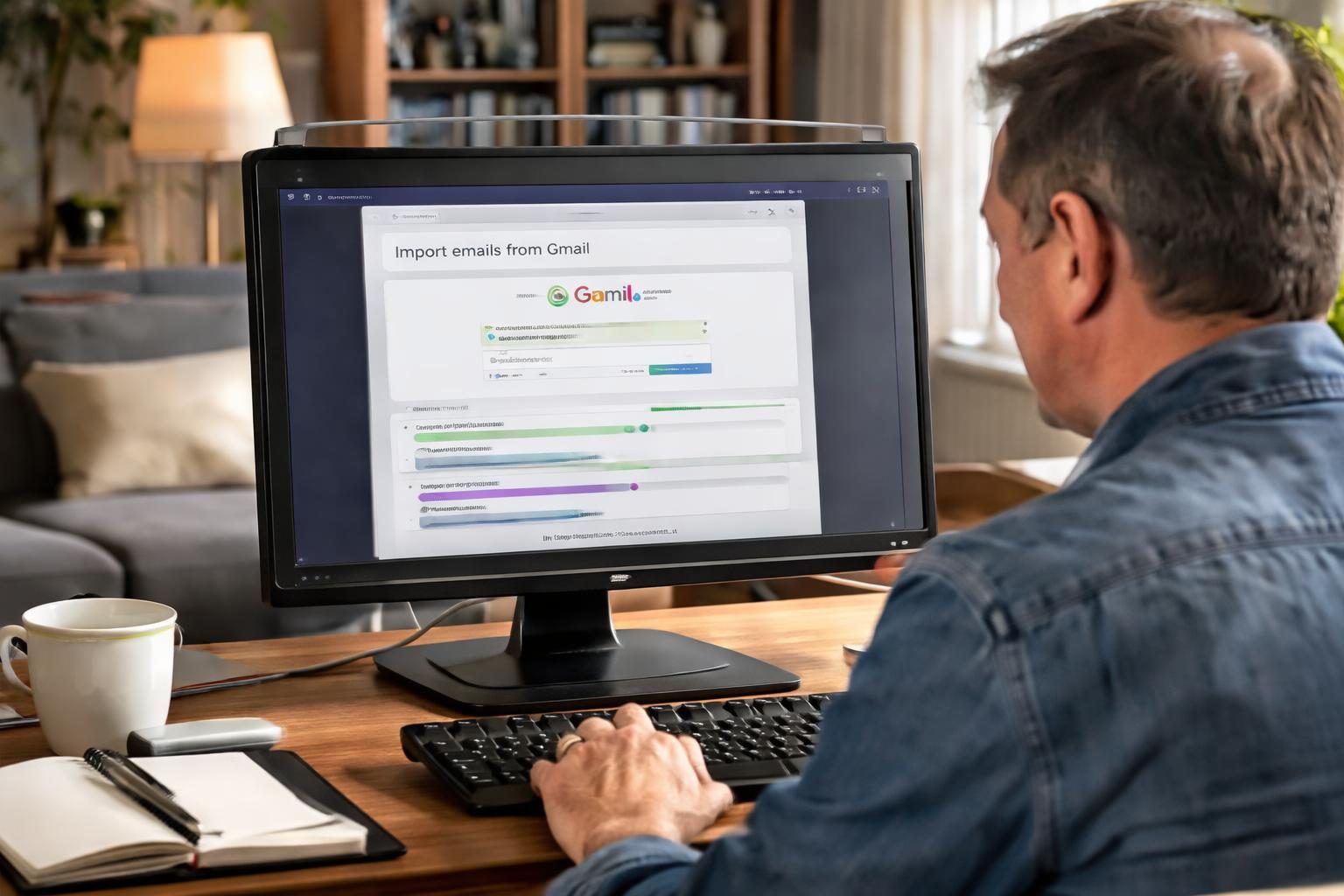
For Gmail, Easy Switch can also set up automatic forwarding, so new messages sent to your old address continue to arrive in Proton Mail. That gives you time to update your address on banking, shopping and subscription accounts gradually instead of in one stressful afternoon.
A sensible migration plan looks like this:
- Import your existing mail, contacts and calendar.
- Turn on forwarding from the old inbox.
- Update your most important accounts first: banking, government services, work tools.
- Watch what still arrives through forwarding over the next few weeks and update those senders as they appear.
Step 4: Send encrypted and password-protected email
Messages between Proton Mail users are end-to-end encrypted automatically. You do not need to manage keys or change how you write email; a lock icon in the composer shows how the message will be protected.
For recipients who use another email provider, you have two main options:
- Password-protected emails. You set a password for the message and share it with the recipient through another channel. They receive a link and unlock the message in their browser. You can also set an expiration time so the message is no longer available after a period you choose.
- PGP. If your contact already uses PGP, you can add their public key to the contact in Proton Mail, and messages to them will be encrypted with it.
Mail from non-Proton senders is still stored with zero-access encryption once it reaches your mailbox, so the content at rest is not readable by Proton.
Step 5: Add a custom domain
If you run a business or simply want an address at your own domain, paid plans let you connect one. The process is guided inside the settings:
- Add your domain name in the Proton Mail domain settings.
- Verify ownership by adding a TXT record at your DNS provider.
- Point your MX records to Proton so mail is delivered to your new inbox.
- Add the SPF, DKIM and DMARC records that Proton displays. These help other mail servers trust your messages and keep them out of spam folders.
- Create the addresses you need, such as hello@yourcompany.com, and assign them to users.
DNS changes can take a little while to spread, so plan the switch for a quiet moment and keep the old mailbox running until you have confirmed that mail arrives.
Step 6: Use Outlook, Apple Mail or Thunderbird with Proton Mail Bridge
Many people prefer to keep working in a desktop email client. Paid plans support this through Proton Mail Bridge, an app that runs on your computer. Bridge encrypts and decrypts your messages locally and presents them to clients such as Outlook, Apple Mail and Thunderbird through a local connection, so your mail remains end-to-end encrypted on Proton's servers while you use the client you already know.
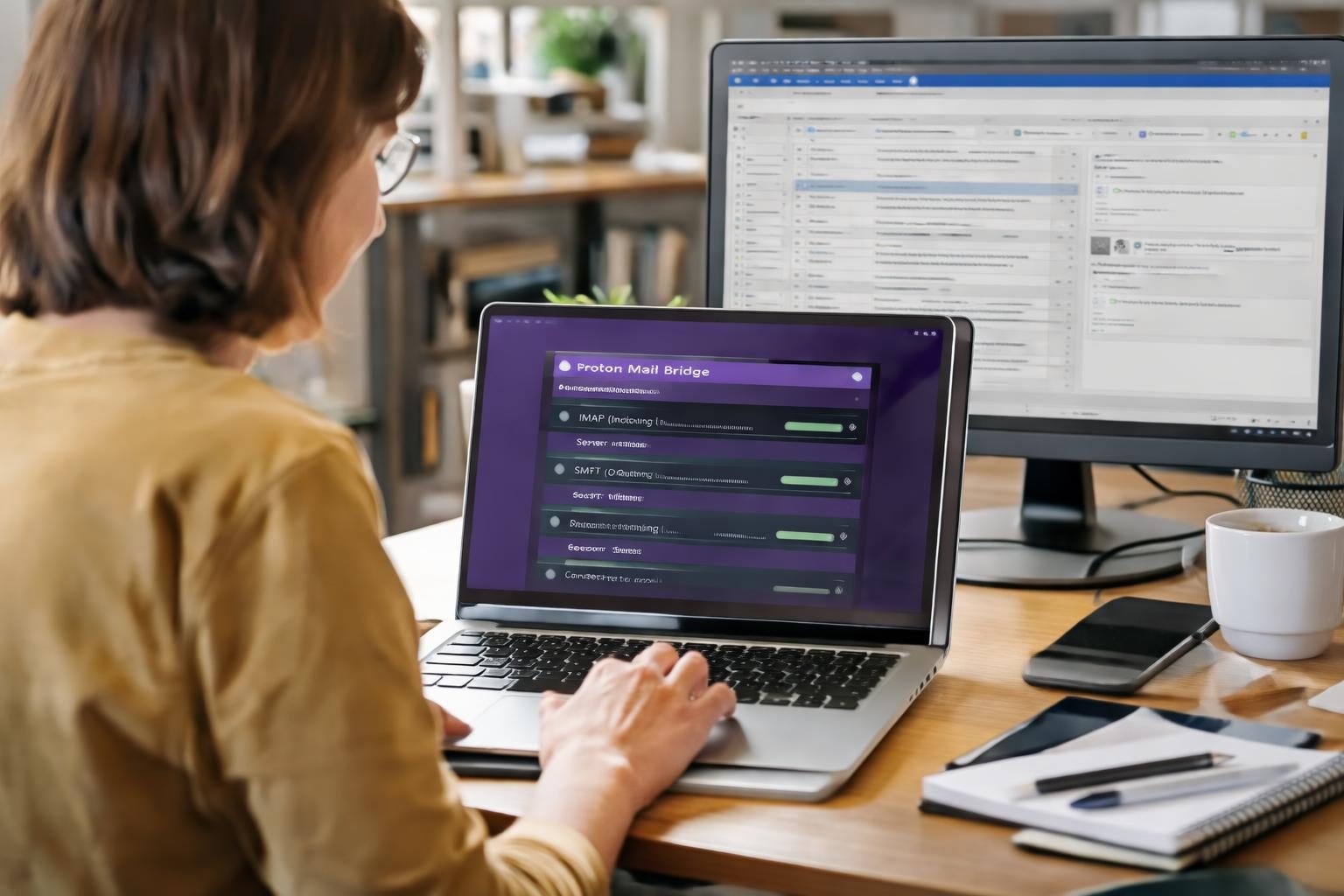
Setup is straightforward: install Bridge, sign in with your Proton account, then add the account to your email client using the connection details Bridge shows you. Bridge needs to be running whenever you use the client.
If you do not need a third-party client, Proton's own web, mobile and desktop apps give you the full feature set without any extra software.
Tips for everyday use
- Organise early. Create folders and labels and set up filters so newsletters, receipts and work mail sort themselves.
- Use aliases for sign-ups. Giving different services different addresses makes it easier to see who shared your email and to cut off spam. Proton offers additional addresses on paid plans and hide-my-email aliases through Proton Pass.
- Explore the rest of the ecosystem. Your Proton account also works with Proton Calendar and Proton Drive, which are encrypted in a similar way and available from the same app switcher.
- Compare plans before you upgrade. Storage, number of addresses, custom domains and Bridge access depend on the plan. Proton lists current plans and prices on its official pricing page, and that page is the reliable place to check what each tier includes.
FAQ
Is Proton Mail free to use?
Yes. Proton Mail has a free plan with core encrypted email features and limited storage. Paid plans add more storage, more addresses, custom domains, Proton Mail Bridge and other features. Check the official pricing page for current details.
Can I move my Gmail messages to Proton Mail?
Yes. The Easy Switch tool imports messages, contacts and calendars from Gmail and other providers, and it can set up forwarding from Gmail so new mail keeps arriving in your Proton inbox.
Can I use Proton Mail with Outlook or Apple Mail?
Yes, on paid plans. Proton Mail Bridge runs on your computer and lets desktop clients such as Outlook, Apple Mail and Thunderbird send and receive Proton Mail while keeping messages end-to-end encrypted.
Are emails to people who do not use Proton Mail encrypted?
Messages to other Proton Mail users are end-to-end encrypted automatically. For other recipients you can send a password-protected email or use PGP if the recipient supports it.
Does Proton Mail have mobile and desktop apps?
Yes. Proton Mail is available in web browsers, as mobile apps for iOS and Android, and as a desktop app for Windows, macOS and Linux.
Are Proton's apps open source?
Yes. Proton's apps are open source and have been independently audited, so their security can be reviewed by outside experts.
Verdict
Getting started with Proton Mail takes less effort than most people expect. Create the account, lock it down with two-factor authentication and a saved recovery phrase, bring your old mail across with Easy Switch, and you have a working encrypted inbox in an afternoon. From there, custom domains and Proton Mail Bridge on paid plans cover the needs of businesses and anyone who prefers a desktop client. If privacy is the reason you are switching, Proton Mail is a practical place to start.